Showing posts with label Links. Show all posts

Saturday, December 21, 2013

Top Excel Help Posts in 2013 and 2014 Goals

2013 is coming to a close so it’s that time of year to sit back and reflect about what transpired this past year and what is to come. I’m going to share my most popular Excel tips from the past year, my most popular Excel templates, and finally share what my goals and vision for next year is.

Top 5 Excel Tips from 2013

 
Listed below are the five most popular Excel tips I published on the Excel Help blog throughout 2013:


Top 5 Excel Templates from 2013

 
Listed below are the top 5 most popular free Excel templates and spreadsheets I created and made available to download in 2013:


Goals for 2014


I recently took a poll of my loyal followers by asking them what they would rather see more of on the blog: spreadsheet templates or tips/tricks/macros to improve spreadsheet creation efficiency? My most recent posts have primarily been spreadsheet templates I’ve made available to download for free, such as my newborn feeding schedule, college bowl prediction pool, etc. Something I’ve gotten away from lately is posting tips and macros to improve your Excel efficiency, like my earlier posts on how to create folders automatically, how to create hatching in Excel, etc.


The majority of my reader’s responses asked for more tips, tricks, and macros to improve Excel efficiency. I will still be creating and posting templates as I have been because I think a lot of people find them to be quite useful and you may pick up a few tips just by looking at them and examining the formulas I use. However, I promise to make a strong effort to post more tips and macros, especially for my email subscribers. In fact, I already have several rough drafts already written and am working on some new video tutorials. What would you like to see more of in 2014? Anything specific?


Have a great holiday season, thanks for your continued support, and see you in 2014!!!


Sunday, December 8, 2013

2013 College Bowl Pool Spreadsheet

The NCAA college football bowl season is here again which means it’s time to make your picks and predictions about who you think will win each game. One of the best times of the holiday season (other than giving and receiving gifts) is gathering around the TV and rooting for your alma mater or hometown football team.


2013 College Bowl Pool Spreadsheet


Upgrades from last year’s college football bowl pool manager spreadsheet include:
  • New easy method to make each bowl game worth a different point value
  • New leaderboard tab and stats
  • New entry sheet to pass out to participants/co-workers
  • Manager copies and pastes participants picks into the bowl pool manager file (will be automated with a macro sometime soon)
  • Complete NCAA college football bowl schedule with game times and TV station
  • The bowl prediction sheets include the football helmet designs for every team, their win-loss record, and the logo for all 35 bowl games. I added the helmets so those players who aren't big college football fans can pick a winner based on their favorite helmet design!

The beauty of this football bowl manager is you will not have to change or modify any formulas yourself (unless you want to of course).  Instructions are included within the Excel file and shows you exactly how to manually add more players. But if you were wondering about the nuts and bolts, my spreadsheet uses the rank without ties formula:
=RANK(num, ref) + COUNTIF(range,num)-1

To download the college bowl pool spreadsheets simply click the link below which will take you to the box.com, where the file is hosted. Next, click on the “Download” link in the upper right hand corner. That’s it!


2013 College Football Bowl Pool Manager.xls download (updated 12-9)
2013 College Football Bowl Prediction Entry Form.xls download (updated 12-9)


Please let me know if you have any questions, comments, find any bugs, or have any suggestions for improvement. If you like this spreadsheet then check out our NCAA Helmet Schedule spreadsheet. What team are you rooting for?


Monday, November 25, 2013

2013 Holiday Gift Ideas for Excel Users

Looking for holiday gift ideas for Excel users? The holiday season is right around the corner and it’s never too soon to start thinking about what presents you are going to get your friends, family, or coworkers. To help you out, I’ve made a list of items I think would be very useful or exciting for Excel spreadsheet users. Some of these items I use on a daily basis and others are things that are on my own personal wish list. Enjoy and feel free to suggest items by leaving a comment below!

Excel Books

Excel 2010 Bible by John Walkenbach: This is by far the best Excel book I have ever found for anyone who uses Microsoft Excel spreadsheets on a daily basis.

Excel for Scientists and Engineers: Numerical Methods: With this text as your guide, you can significantly enhance Microsoft Excel's capabilities to execute the calculations needed to solve a variety of chemical, biochemical, physical, engineering, biological, and medicinal problems. If only Excel could solve world peace too!

Microsoft Excel 2010 In Depth by Bill Jelen. Known as Mr. Excel, Bill Jelen is a Microsoft Excel MVP. This book literally covers everything you’d want to know about Excel 2010.

101 Secrets Of AMicrosoft Excel Addict - Discover little-known Excel secrets that have been hiding right under your nose that will help boost your Excel skills and productivity far ahead of everyone around you.

VBA and Other Books
Microsoft Visual Basic 2010 Step by Step by Michael Halvorson: A lot of hands-on work-by-examples will further the development of your Visual Basic programming skills.


Best Excel Apps

Kingsoft Android Spreadsheets: A powerful spreadsheet application for quickly calculating data, view graphs and filter data, and also a great tool for editing Excel files and save them to xls, xlsx, csv, pdf and etc.

Simple Spreadsheet: Great little program for putting together some quick calculations on the go. Much easier to use than Google Docs spreadsheets.


Best Tablet for Excel Spreadsheets

Microsoft Surface 2: For my needs, Surface 2 is perfect. This device comes preinstalled with a "touch enabled" Microsoft Office which includes Outlook. Basically, all I was looking for was a tablet to check my email, do some word processing, edit spreadsheets, browse the web, and pay bills online.

Excel Software

Microsoft Office Home & Student 2010: Includes the latest and greatest version of Microsoft Excel, among others.

Other Tech, Gadgets, and Toys


Google ChromeCast HDMI Streaming Media Player. Stream my Excel YouTube videos right to your TV using your smartphone, tablet, or laptop!

R/C Helicopter. This Brand New 3 Channel mini rc helicopter is the world's newest, most durable and stable helicopter. The item comes with the latest gyro system for precision control. The metal frame has proven to withstand dozens of crashes.

HDMI Pocket Projector. Projects up to 1080p HD images up to 60" diagonal. Rechargeable and portable. Connects via HDMI to most smartphones, tablets, computers, video players, cameras and more.

Breaking Bad: Complete Series. All seasons plus tons of amazing extras for the greatest show on television. The episode titled "Ozymandias" is my favorite episode of any TV show I've ever seen.

Amazon Prime

I highly recommend joining Amazon Prime. If you order something off of Amazon on average once per month then it pays for itself, or if you're ordering a bunch of gifts this holiday season it probably will too. The FREE two day shipping is awesome and everything I've ordered really has come in two days or less. You can also stream movies, TV shows, and get a Kindle book every month. Great alternative for Netflix or Hulu and well worth the investment in my opinion. Cheers!


What gifts are you getting your fellow percussionist for the holidays? Please let me know by commenting below!


Sunday, October 20, 2013

Newborn Checklist for New Parents

Sorry for the lack of posts recently (besides sports spreadsheets) but the reason is because I’ve been getting ready for something big, something exciting, something life-altering: my wife and I are expecting our first child next month! We’re super stoked to be having a son but anxious at the same time. We’ve been working hard at getting everything ready but I can’t help thinking, “what if we’ve forgotten something important?” There have been so many things to do and there are so many things yet to do. How does a new parent keep it all organized? My solution is to use an Excel spreadsheet of course!
 

baby announcement picture shoes

baby announcement picture team rivalry jersey


In order to keep myself organized and to help other future parents I’ve put together what I hope is the ultimate newborn checklist in Excel. This master file is composed of four separate sheets (I imagine I'll probably add more in the future too):

things to do before the baby is born checklist


Things to do BEFORE the Baby is Born
The first sheet is a getting ready for baby checklist. It includes a list of things you should do before your baby is born and how soon before the due date they should be completed by.


Baby Registry Checklist
The next sheet in the file is the baby registry checklist. You can use this for a baby shower checklist or for a list of things you need before the baby arrives.


Hospital Bag Checklist
A list of what to pack for the hospital that you can easily print off if you would like.


Things to Do After the Baby is Born checklist
Another checklist of things that need to be done after the baby is born.


Behind the scenes so to speak, the newborn checklist spreadsheet uses named ranges, data validation to create lists, conditional formatting to color cells based on text, IF formulas, concatenate formulas, data filtering, and more. You’re free to poke around the spreadsheet if you want to see how it works or you don’t have to deal with any of that if you don’t want to and simply fill in the information or print it off.

My goal is to make this the ultimate resource for new parents. I’ve tried to include everything such as what to pack in hospital bag for mom. Tasks can be assigned to husband or wife. I also included some links to some services that can help you save money, like Amazon Mom. Believe me guys, your wives will be very impressed and happy if you use this list and actually help her prepare (yay brownies points). Download the spreadsheet for free using the link below.


Please let me know in the comments if you enjoy this newborn checklist and if you would like to see more parenting Excel templates like it.


Tuesday, September 10, 2013

Download a Wordpress Website Creation Checklist Spreadsheet

In the past two years I’ve created eight websites for various hobbies and niches I am interested in and that I felt were underserved in the online world. I use Wordpress as my content management system because it allows you to quickly create a website with no HTML or other coding experience. The steps to setup a new website are pretty much the same so I put together a Wordpress website creation checklist to help me remember to do everything. I’ve made this checklist into an Excel template which you can download for free by clicking the link below.
 
wordpress website creation checklist
 
Two skills I encourage everyone to learn that I’ve found invaluable in my career is how to program VBA macros and how to build a simple website. In fact, in one of my most recent projects these skills were used hand-in-hand. I built the majority of the Observation Wheel database with an Excel spreadsheet and a few custom macros. Every row in my sheet contained all the information for a single observation wheel. I then had the macro export the data to Microsoft Word in the HTML format I needed for the site. I then simply copied and pasted that text into Wordpress and published it. I created pages for over eighty dfferent observation wheels almost instantly!
 
There are countless positive benefits for learning how to make a website. I’ve included a link to all the resources I use within the template and I've tried to include as many tips as I could think of. I begin with registering a domain name and take you all the way through setting up an email list. Download my Wordpress website creation checklist below and please feel free to ask me any questions you may have!
 

Thursday, June 6, 2013

Excel Pranks and Practical Jokes with VBA

I’ve shared a lot of Excel tips about how to increase your productivity at work but today I thought I would post something a little more fun – how to decrease your productivity! I’m talking about ways to use Microsoft Excel spreadsheets to play pranks, practical jokes, April Fool’s Day kind of stuff on your friends, roommates, and coworkers. The intent is not to harm anyone or hurt their professional careers – this is simply about having some plain ole fun.

A great way to wreak havoc in the workplace is to create a macro that automatically runs when an Excel workbook is opened. You can do this by writing a VBA procedure in the Open event of the workbook by using the Visual Basic Editor. Create a new Excel spreadsheet then press Alt+F11 to launch the VBA Editor. Next, right-click the ThisWorkbook object, and then click View Code.
excel pranks
 
In the Object list above the Code window, select Workbook. This will automatically create an empty procedure for the Open event like this and you can now add your evil code.

excel practical jokes
 
To make Excel automatically close itself when the workbook is opened use this:

Private Sub Workbook_Open()
     Application.DisplayAlerts = False
     Application.Quit
End Sub
 

Here’s a trick that will automatically open Microsoft Word and close Excel:

Sub Workbook_Open()
‘make sure the Microsoft Word Object Library is selected by going to tools>references
Application.Visible = False
Dim wdApp as Word.Application
Set wdApp = New Word.Application
wdApp.Visible=True
Set wdApp = Nothing
Application.DisplayAlerts = False
Application.Quit
End Sub
 

This is one of my personal favorites; have a message box pop-up asking if the user wants to download the virus they requested. Whether they press the yes or no button the next message tells them the virus has begun downloading!

Private Sub Workbook_Open()

MsgBox "The virus you requested is now ready to download, Do you want to start downloading now?", vbYesNo, "Virus Trojan-x45fju"

MsgBox "The Virus is Now Downloading. You have made the biggest mistake of your life! ByE bYe", , "Begin Virus Download"

End Sub

This function flips the workbook and will make everything on the left now appear on the right side:

ActiveSheet.DisplayRightToLeft = True

To change all cell’s color to black:

Cells.Interior.Color = RGB(0,0,0)

Instead of automatically running a macro on opening a workbook (and making it obvious you did something) you could embed a macro that only runs on certain conditions. A funny prank is a macro to change the size of the Excel window every time the user clicks on a cell:

Private Sub Workbook_SheetSelectionChange(ByVal Sh As Object, ByVal Target As Range)

Application.WindowState = xlNormal

Application.Width = Int(Rnd() * 1000) - 100

End Sub


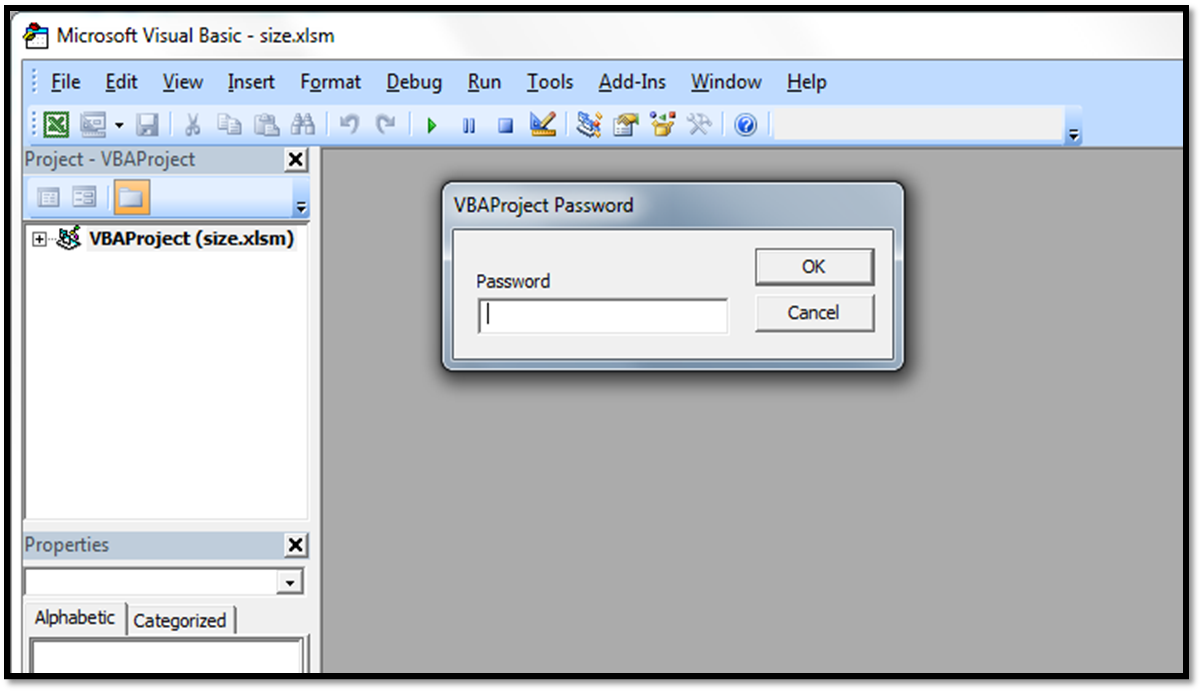
As you can imagine, the possibilities are nearly endless! Now you may think “All someone has to do is change or delete the code to fix the problem.” Well, you can protect your VBA code so only those with the password can modify it. Go to Tools>VBAProject Properties>Protection. Check the box to lock project for viewing and create a password (and remember it). Now you’re an evil genius!


Of course, if you’re not comfortable using VBA (which I recommend you get comfortable and learn it)  you can always use these old fashioned tricks:

  1. Use find and replace on a document, like replacing “you” with “you idiots”.
  2.  If your coworker has an old school mouse simply remove the ball when they're not around and then sit back and watch the fun when they try to figure out why their mouse isn't working anymore.
  3. Take a screen capture of a roommate’s desktop and save it as a jpg or bmp file. Turn on the Active Desktop, and make sure to turn off "show desktop icons". Change the wallpaper to the screen capture image you just saved and watch as they click away on their "icons" that mysteriously stopped working.

Have you ever used something like this on someone? What’s your best Excel prank?

Tuesday, April 16, 2013

Unique Excel Uses: Video Game

We’ve seen some very unique Excel uses in the past but this just might be the best (or most fun) application: Excel as a video game! Cary Walkin, a Canadian accountant, has transformed a Microsoft Excel spreadsheet into a playable video game. Arena.xlsm is a turn-based fantasy role playing game where the goal is to collect loot to become more powerful all the while warding off increasingly difficult  monsters. In fact, there are currently over 2000 possible enemies with different AI abilities. Sounds complex! Remarkably, it only took Cary four months to completely program this game.

arena xlsm excel as video game


Cary has received a lot or press and attention since creating his Excel game. Recently, he was featured on one of Reddit’s “I Am A” features. A few quotes from Cary:

“I'm an accountant by profession, I use excel every day of my life. I simply worked with what I knew. Also there is an old adage that underneath every RPG is a massive spreadsheet, so now the massive spreadsheet IS the RPG!”

“...a number of calculations are dependent on the background colour of a cell (such as if you are standing on fire).”

“Never stop learning.”


Read the entire interview feature here. Additionally, to see an example of how one would even begin to go about coding this massive gaming macros see Cary’s great VBA tutorial here.

Visit Cary’s site and download Arena XLSM today and try it out for yourself! But be warned, your productivity may decrease greatly after playing a few levels.  Please note you must have macros enabled in order to play the game. Arena.Xlsm will only work in Excel 2007, 2010 and 2013. It will not work in other spreadsheet programs either. Have fun!

-Nick
Of course I’m not playing this at work ;)

Thursday, March 7, 2013

Printable Big Ten Tournament Bracket 2013

big ten tournament bracket 2013
I’ve never done this before but being a big fan of the Big Ten I’ve decided to create a printable Big Ten Tournament Bracket this year. The men’s basketball tournament begins on Thursday, March 14th in the heart of Big 10 country at the United Center in Chicago, Illinois. The cool thing about this editable Excel bracket is it includes the complete Big Ten basketball tournament schedule including all of the game times and television channels. Currently, I only have seedings listed. I will list the actual teams once they are known and then update the spreadsheet on Sunday.


Download the all in one bracket and Big Ten Tourney schedule here.

I can’t wait until the Big Ten Tournament starts! There are so many questions to answer: Will Michigan have an early exit? Is Indiana fading? What Minnesota team will show up? Can Iowa or Illinois spring an upset? How far can Ohio State go? With the way each of the top five teams have dropped random games they should have won this year I’d argue there is no clear favorite to win the Big Ten Basketball Championship. What do you think? I’d love for you to share your thoughts on the Big 10 tournament!


Check back soon for the 2013 March Madness brackets and download our new Excel Spreadsheets Help Android app!

Tuesday, March 5, 2013

Macro to Export Hyperlinks from Excel to Word


In this tutorial I am going to show you how to write a VBA macro to export hyperlinks from Excel to Word. I’m all about automation and efficiency and this is another real world example. I used this macro to quickly create a table of the world’s observation wheels for my latest website.

What you will learn by reading through this tutorial:

  • How to create a VBA macro to send data from Excel to Word
  • How to export hyperlinks from Excel
  • How to find the last row of data in an Excel sheet using a macro
  • How to paste hyperlink into Word using a macro
  • How to make a webpage from an Excel file

To begin, we have an Excel sheet with names in column A, some of them are hyperlinks to webpages and some of them are not. Hit Alt + F8 and create a new macro, I named mined Tables. It’s time to begin coding.
 
export hyperlinks from excel to word


The first thing we need to do is create a new instance of Microsoft Word and make it visible:


Dim appWD As Word.Application

Set appWD = CreateObject("Word.Application")

appWD.Visible = True


Next, let’s find the last row that contains data within our active Excel spreadsheet (my sheet is called “Data”):


Sheets("Data").Select

            Dim FinalRow As Integer


            FinalRow = Range("A9999").End(xlUp).Row


Now we add some error handling - if there is no data then quit the program, otherwise continue on:

If FinalRow = 0 Then

            Exit Sub


            Else


As a check, I like to have a message box pop-up displaying the total number of rows with data:


            MsgBox "Number of rows is " & FinalRow


Now it’s time to tell Word to create a new document. We’ll also add our header text by using TypeText. TypeParagraph inserts a new paragraph by going to the next line:


            appWD.Documents.Add

            appWD.Selection.TypeParagraph


            appWD.Selection.TypeText Text:="[table caption= List of Observation Wheels]"


            appWD.Selection.TypeParagraph


            appWD.Selection.TypeText Text:="Name,Height(m)"

Next, we’ll create a For...Next loop to cycle through every row and look to see if there is a hyperlink in column A. If there is a hyperlink, we want to copy it, if not then we still want to copy any text in the cell.


Dim hyperlink1 As String

Dim i As Integer


            For i = 2 To FinalRow


            If Range("A" & i).Hyperlinks.Count > 0 Then


            'if there is a hyperlink


            appWD.Selection.TypeParagraph


            hyperlink1 = Range("A" & i).Hyperlinks(1).Address


            appWD.ActiveDocument.Hyperlinks.Add Anchor:=appWD.Selection.Range,          Address:=hyperlink1, SubAddress:="", ScreenTip:="", TextToDisplay:=Range("A" & i)


            appWD.Selection.TypeText Text:="," & Range("B" & i)


            Else


            'If no hyperlink


            appWD.Selection.TypeParagraph


            appWD.Selection.TypeText Text:=Range("A" & i) & "," & Range("B" & i)


            End If


            Next 'i


Finally, we can add any text at the bottom of the document and close the if and sub statements.


            'end the table

            appWD.Selection.TypeParagraph

            appWD.Selection.TypeText Text:="[/table]"

            End If

            End Sub

create webpage from excel with macro
 

You may have noticed I began and ended with [table] and [/table]. I installed a Wordpress plugin on my website that enables me to easily insert sortable tables into my webpage without any major html coding involved. So now I can run my macro on my spreadsheet, copy the result it spits out into Word, and paste the text into my website. Here is the end result, a sortable table of all large observation wheels found throughout the world! Pretty cool huh?
Related Posts Plugin for WordPress, Blogger...